
App Block Surveys
App Block Surveys: Embed Surveys Directly Into Your Pages
App Block Surveys let you place a survey directly into any page of your Shopify store as an inline section — not a popup or overlay. The survey sits naturally within your page content, matching your theme's look and feel, and is visible to every visitor who scrolls to that section.
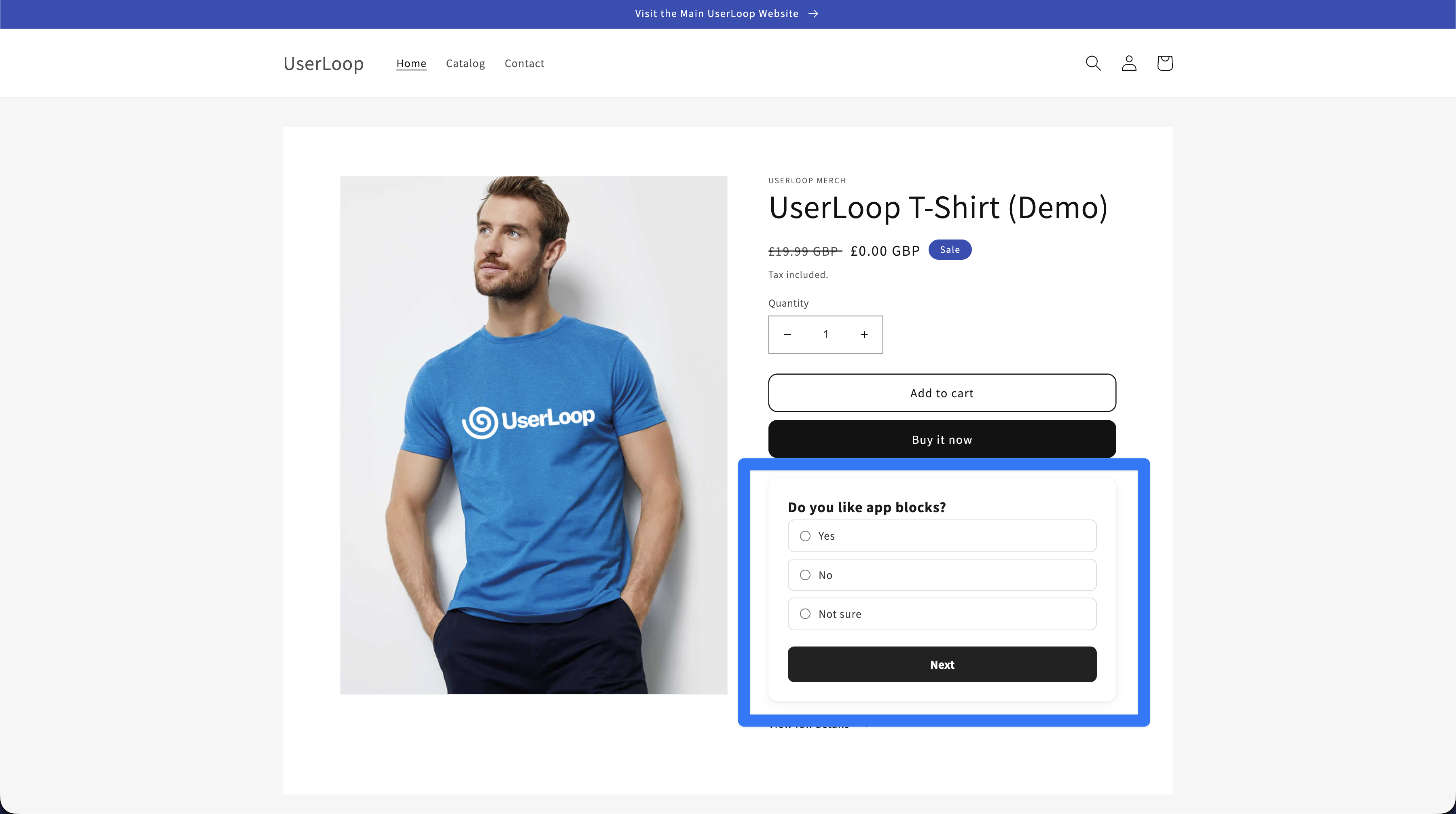
Because app blocks are placed directly into your page layout, they're incredibly versatile. Here are just a few ideas:
- Product pages — ask visitors about their product preferences, what features matter most, or what they're looking for. Place it below the product description or after the reviews section.
- Home page — collect "How did you hear about us?" attribution data, or gather email addresses with a discount incentive.
- Collection pages — understand what shoppers are browsing for, or ask about their style preferences to help guide them.
- Blog posts — ask readers if the content was helpful, or what topics they'd like to see covered next.
- Landing pages — capture leads or gather feedback on a specific campaign or new product launch.
- Contact / About pages — ask visitors what brought them to your store, or what they're looking for help with.
The possibilities are endless — anywhere you can add a Shopify app block, you can add a UserLoop survey.
How App Block Surveys Work
Unlike popup surveys, app blocks don't wait for a trigger. They render immediately as part of the page content wherever you place them. Visitors see the survey as a natural section of the page and can answer questions without any interruption to their browsing.
App block surveys display every time the page loads — they don't disappear after a visitor completes them. This means you can collect ongoing feedback from repeat visitors over time.
Setting Up Your App Block Survey
Step 1. Create an App Block Survey
In your UserLoop dashboard, click Create Survey and select the App Block option.
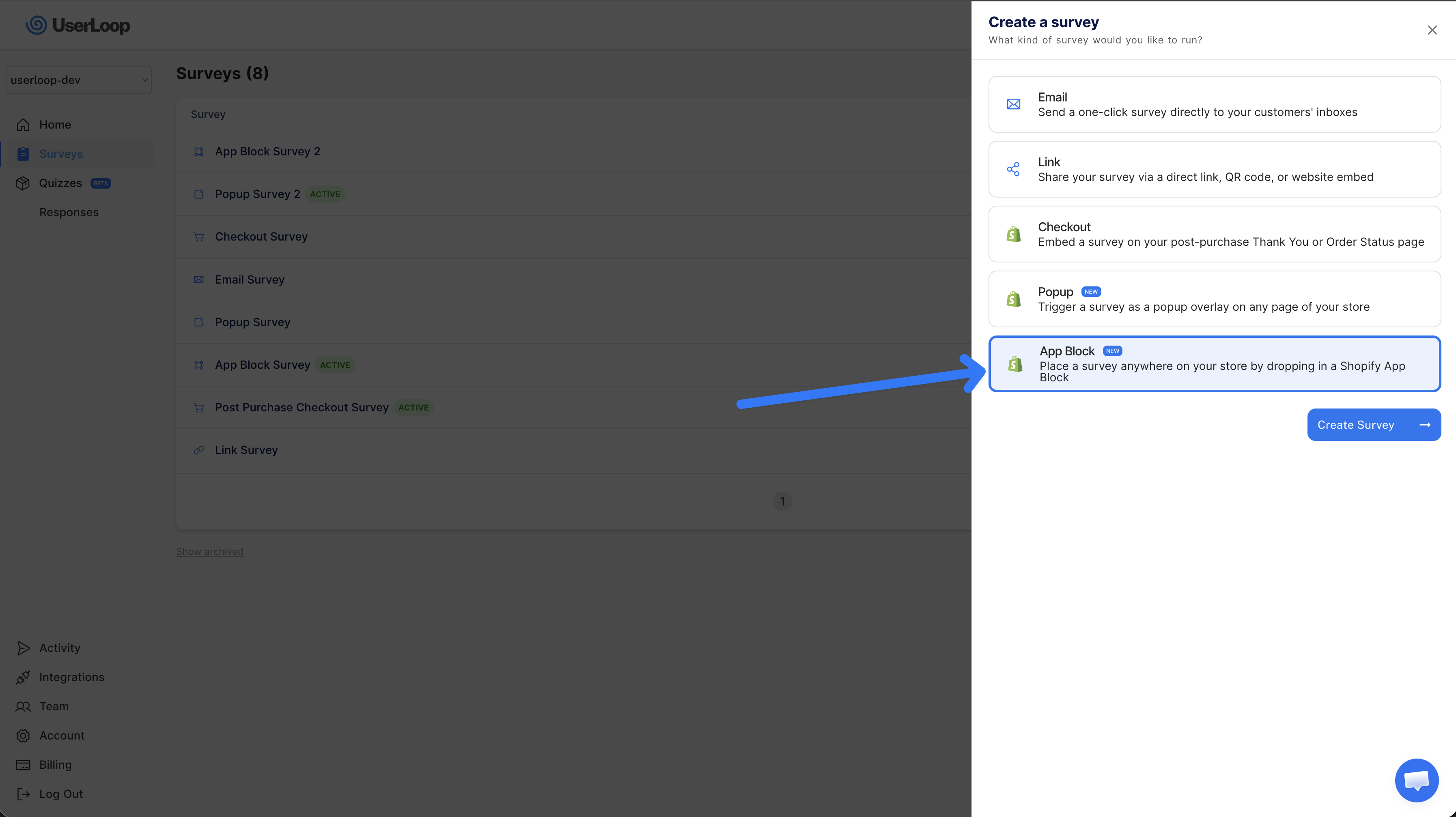
Add your questions, configure your design and settings, then move on to activation.
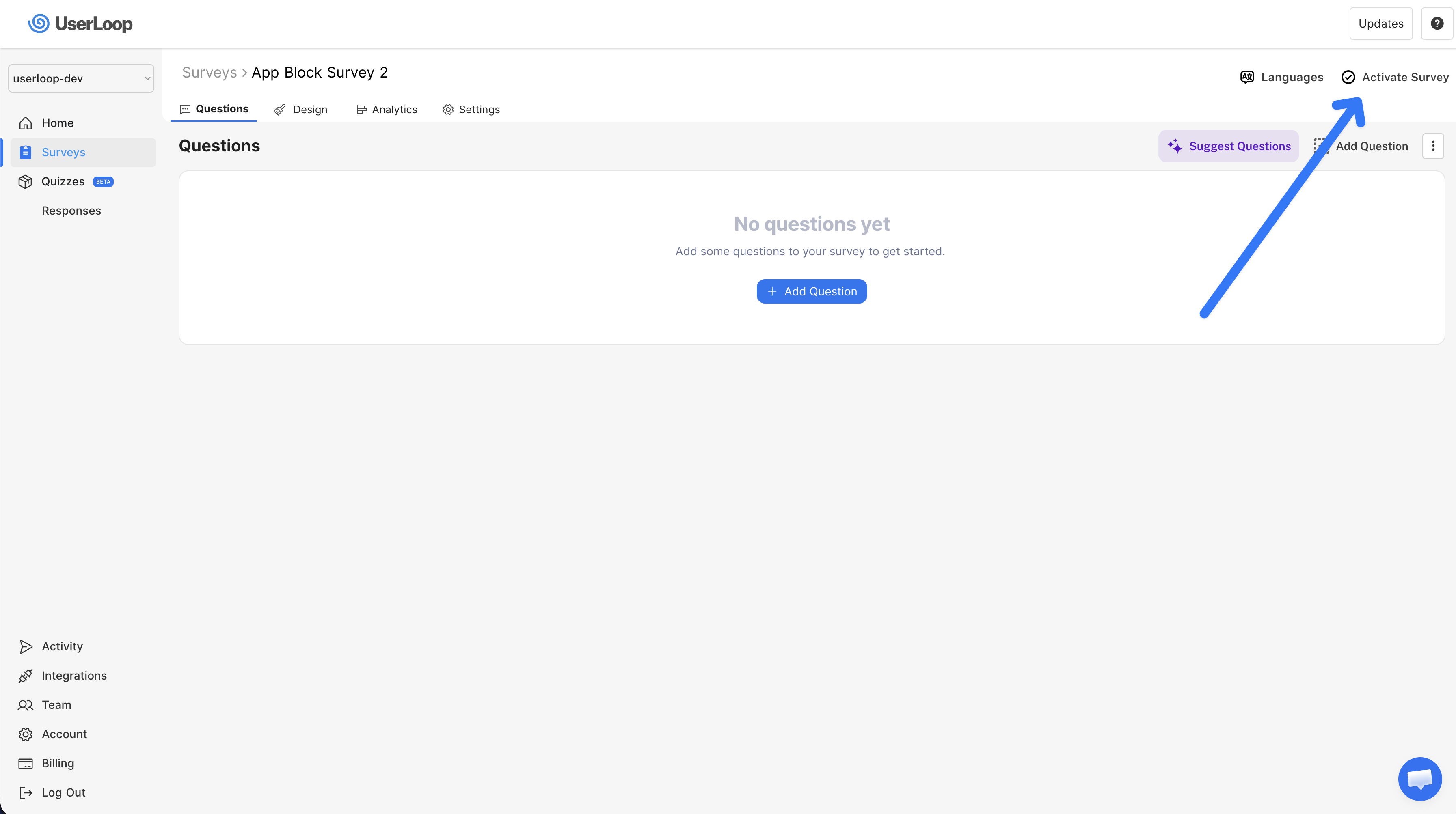
Step 2. Activate Your Survey
Once your survey is ready, click the Activate Survey button in the top-right corner. If this is your first app block survey, it will automatically be set as your live one. If you have multiple app block surveys, use the Activate button to choose which one is currently live.
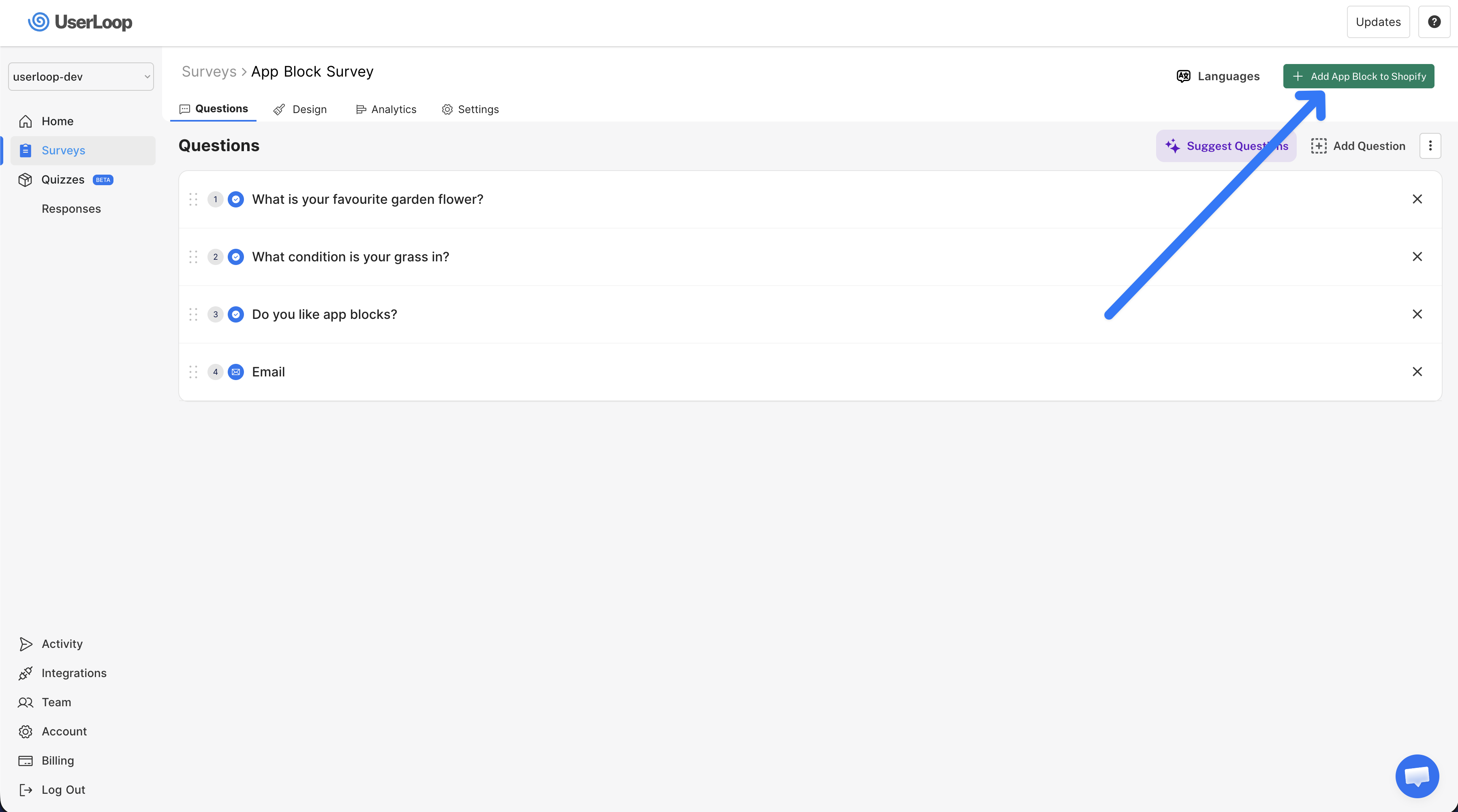
Step 3. Add to Shopify
Once your survey is active, you'll see a green Add App Block to Shopify button appear. Click this to go directly to your Shopify theme editor.
Step 4. Position and Style in the Theme Editor
You'll be taken to the Shopify theme editor where the UserLoop Survey block has been added. From here you can:
- Drag the block to position it exactly where you want it on the page — for example, below the product description, after a hero banner, or at the bottom of a blog post.
- Configure styling — adjust the width, background style, text alignment, border radius, and padding to match your theme.
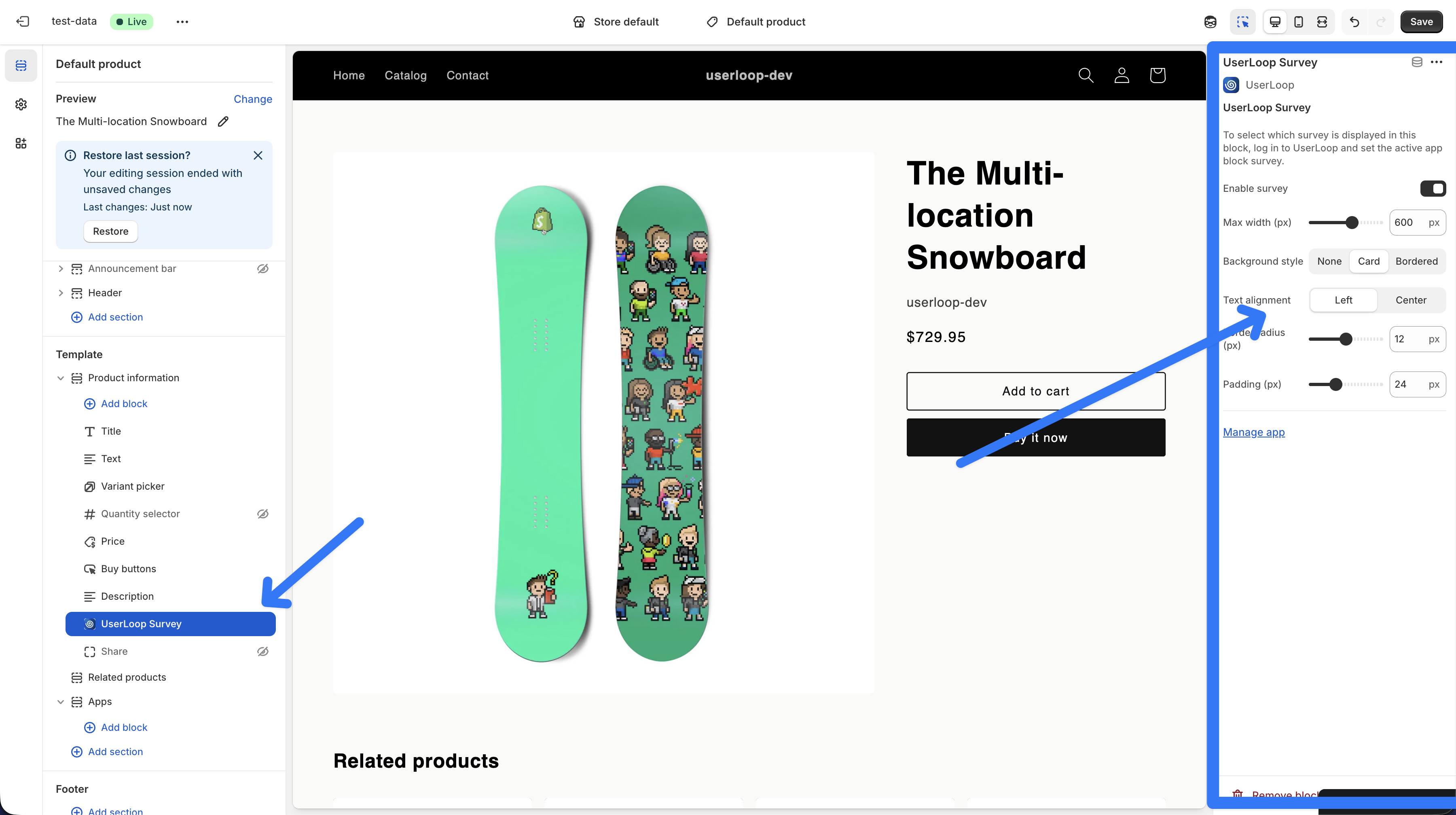
Click Save to publish your changes — your app block survey is now live on your store.
Adding to Multiple Pages
You can add the UserLoop Survey app block to as many pages as you like. Simply go to each page in the theme editor and add the block. This is one of the key advantages of app blocks — you have full control over exactly where surveys appear.
Styling Your App Block Survey
App block surveys are designed to blend into your store's design. You have several customization options available directly in the theme editor:
Max Width
Set the maximum width of the survey container, from 300 to 800 pixels (default is 600px). The survey is centered on the page within this width. On mobile devices, it automatically scales to fit the screen.
Background Style
Choose how the survey container looks:
- None — fully transparent, the survey blends directly into the page background.
- Card (default) — a white background with a subtle shadow, giving the survey a clean, elevated appearance.
- Bordered — a light border around the survey with no shadow, for a more understated look.
Text Alignment
Control how questions and answer choices are aligned:
- Left (default) — questions and choices align to the left, which feels natural for longer text.
- Center — everything is centered, which works well for short questions and fewer answer options.
Border Radius
Set the corner rounding from 0 to 24 pixels (default is 12px). Use 0 for sharp corners or a higher value for a softer, more rounded look. This applies to the survey container and buttons.
Padding
Set the internal spacing from 12 to 48 pixels (default is 24px). This controls the space between the survey content and the edges of the container.
Theme Font Inheritance
App block surveys automatically inherit your theme's fonts, so the survey text matches the rest of your store without any extra configuration.
Selecting Which Survey to Display
The app block displays whichever survey you have set as active in your UserLoop dashboard. The active survey is the one shown on your store across all pages where you've added the app block.
To change which survey is displayed, go to the survey you want to use in your UserLoop dashboard and click the Activate Survey button. This makes it the live survey — only one app block survey can be active at a time.
Supported Question Types
App block surveys support all of UserLoop's question types:
- Single select — radio button choices
- Multi select — checkbox choices
- NPS / number scale — 0-10 rating buttons
- Open-ended text — free text input
- Email — email address collection
- Date — date picker
You can also enable the "Other" option on choice questions to let visitors type in their own answer.
Smart Question Targeting
App block surveys support the same question targeting as other UserLoop survey types:
- All customers — shown to everyone.
- New customers only — shown only to visitors who have never placed an order.
- Returning customers only — shown only to visitors who have ordered before.
How Customer Type Is Determined
If your survey includes an email question, something special happens: after the visitor enters their email, UserLoop checks their order history in real time. This means subsequent questions in the survey can be dynamically shown or hidden based on whether that visitor is a new or returning customer.
If no email question is included, customer-type-restricted questions are skipped for anonymous visitors.
Follow-Up Questions
Follow-up questions work the same way as in other survey types. If a visitor selects an answer that has a follow-up configured, the follow-up question appears inline immediately, keeping the flow smooth and natural.
Discount Codes
If you've enabled discount codes on your survey, a unique code is displayed to the visitor after they complete all the questions. The code is tied to the visitor's email address (if collected) and can be copied to the clipboard with a single click.
This is a great way to incentivize survey completion — offer a small discount in exchange for feedback.
Progress Bar
When enabled in your survey settings, a progress bar appears at the top of the survey showing visitors how far through they are. This is especially helpful for longer surveys to set expectations and encourage completion.
Auto Proceed
If Auto Proceed is enabled on your survey, the survey automatically advances to the next question when a visitor selects a single-choice answer. This creates a faster, more engaging experience that feels less like filling out a form.
Mobile Experience
App block surveys are fully responsive. On mobile devices:
- The survey scales to fit the screen width.
- Buttons and inputs are sized for easy tapping.
- The layout adjusts to ensure readability on smaller screens.
Since app blocks are inline content (not overlays), they feel completely natural on mobile — just another section of the page.
Best Practices
Where to Place App Blocks
The best placement depends on what you're trying to learn:
- Home page — place below the fold for general brand feedback or email collection. Great for "How did you hear about us?" type questions.
- Product pages — place below the product description or reviews section to ask about purchase intent or product preferences.
- Blog posts — place at the end of articles to ask if the content was helpful.
- Landing pages — place prominently to capture leads or gather feedback about a specific campaign.
- About page — place at the bottom to ask visitors what brought them to your store.
Design Tips
- Use the Card background for most themes — it gives the survey a clean, defined boundary that draws attention without clashing.
- Match your border radius to your theme's style. If your theme uses rounded corners on buttons and cards, use a similar radius for the survey.
- Keep the width between 500-700px for the best readability on desktop. Too narrow and it feels cramped; too wide and it can look sparse.
- Center alignment works best for short surveys (1-2 questions). For longer surveys, left alignment is easier to read.
Content Tips
- Keep it relevant to the page: Ask about products on product pages, ask about content on blog pages.
- Shorter is better: 2-4 questions gets the best completion rates.
- Lead with value: If you're offering a discount, mention it in the first question or in a heading above the survey.
App Block Surveys vs. Popup Surveys
Not sure which to use? Here's a quick comparison:
| App Block | Popup |
|---|---|---|
Display | Inline on the page | Modal overlay |
Placement | You choose exactly where | Appears on all enabled pages |
Trigger | Immediate — visible on page load | Timer, exit intent, or scroll |
Repeat visits | Shows every time | Shows once per visitor |
Intrusiveness | Low — part of the page | Higher — interrupts browsing |
Best for | Ongoing feedback, email capture, page-specific questions | Quick feedback, exit surveys, site-wide questions |
You can use both at the same time. For example, run a popup survey site-wide for "How did you hear about us?" while placing app block surveys on specific product pages to ask about purchase intent.
FAQs
Can I place multiple app block surveys on the same page?
You can add the block multiple times, but they will all display the same active survey since only one survey can be active for the app block surface at a time.
Will the survey show again if a visitor already completed it?
Yes. Unlike popup surveys, app block surveys display every time the page loads. This is by design — it allows you to collect ongoing feedback from repeat visitors.
Does it work with Shopify's section groups and templates?
Yes. The UserLoop Survey app block works anywhere Shopify allows app blocks — in sections, templates, and section groups.
Can I hide the survey on mobile?
The app block doesn't have a built-in mobile hide option, but you can use your theme's built-in CSS visibility controls or section settings if your theme supports them.
Does it slow down my page?
No. App block surveys use deferred loading, which means they initialize after the rest of your page has loaded. This ensures zero impact on your store's page speed.
Need Help?
If you have any questions about setting up app block surveys or need assistance choosing the right placement for your store, don't hesitate to reach out to our support team.
Updated on: 26/02/2026
Thank you!