
Popup Surveys
Popup Surveys: Capture Feedback Anywhere on Your Store
Popup surveys let you display a survey as a modal overlay on any page of your Shopify store. They're perfect for capturing feedback, collecting emails, or understanding your visitors without requiring them to navigate to a specific page.
Once a visitor completes or dismisses a popup survey, it won't appear again for that visitor, so you never have to worry about annoying repeat customers.
How Popup Surveys Work
When a visitor lands on one of your enabled pages, UserLoop waits for a trigger event — a timer, exit intent, or scroll depth — and then displays the survey as a popup overlay. The visitor answers your questions directly in the popup, and their responses flow straight into your UserLoop dashboard.
Setting Up Your Popup Survey
Step 1. Create a Popup Survey
In your UserLoop dashboard, click Create Survey and select the Popup option.
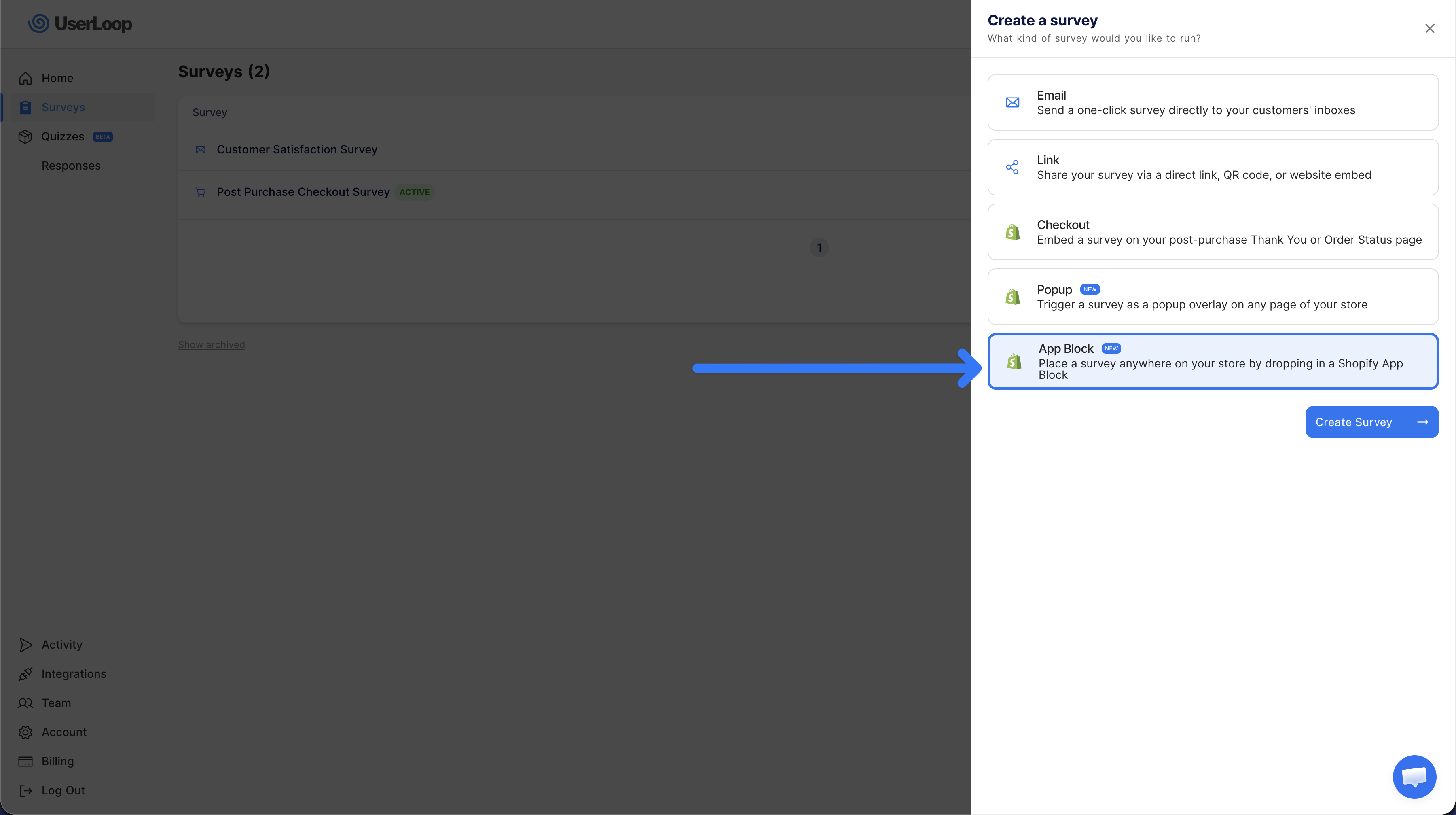
Add your questions, configure your design and settings, then move on to activation.
Step 2. Activate Your Survey
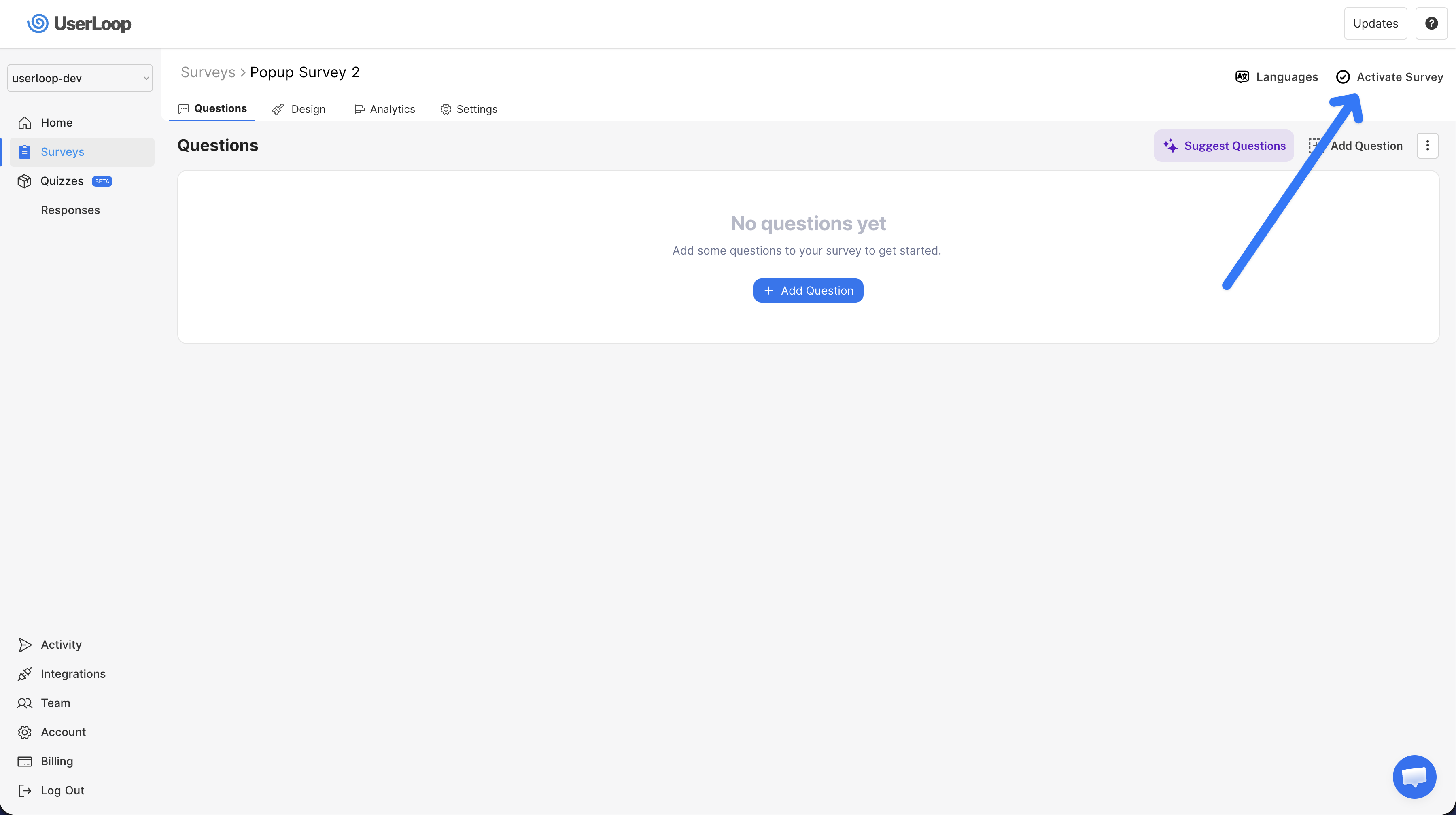
Once your survey is ready, click the Activate Survey button in the top-right corner. If this is your first popup survey, it will automatically be set as your live one. If you have multiple popup surveys, you'll need to use the Activate button to choose which one is live.
Step 3. Add to Shopify
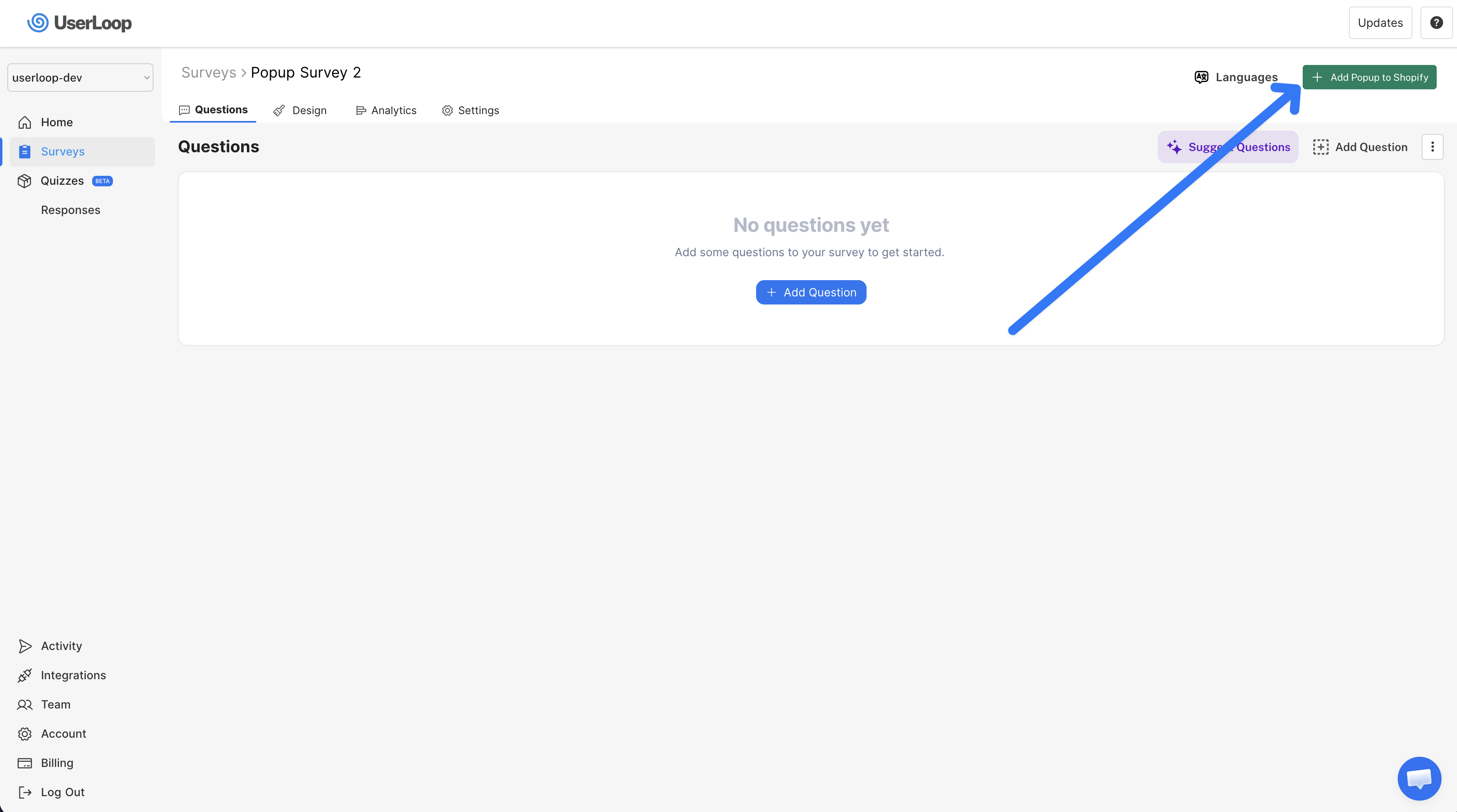
Once your survey is active, you'll see a green Add Popup to Shopify button appear. Click this to go directly to your Shopify theme editor where you can configure the popup settings.
Step 4. Configure in the Shopify Theme Editor
You'll be taken to the App embeds section of your theme editor. Here you can toggle the popup on, choose your trigger type, set the popup width and position, and control which pages show the popup.
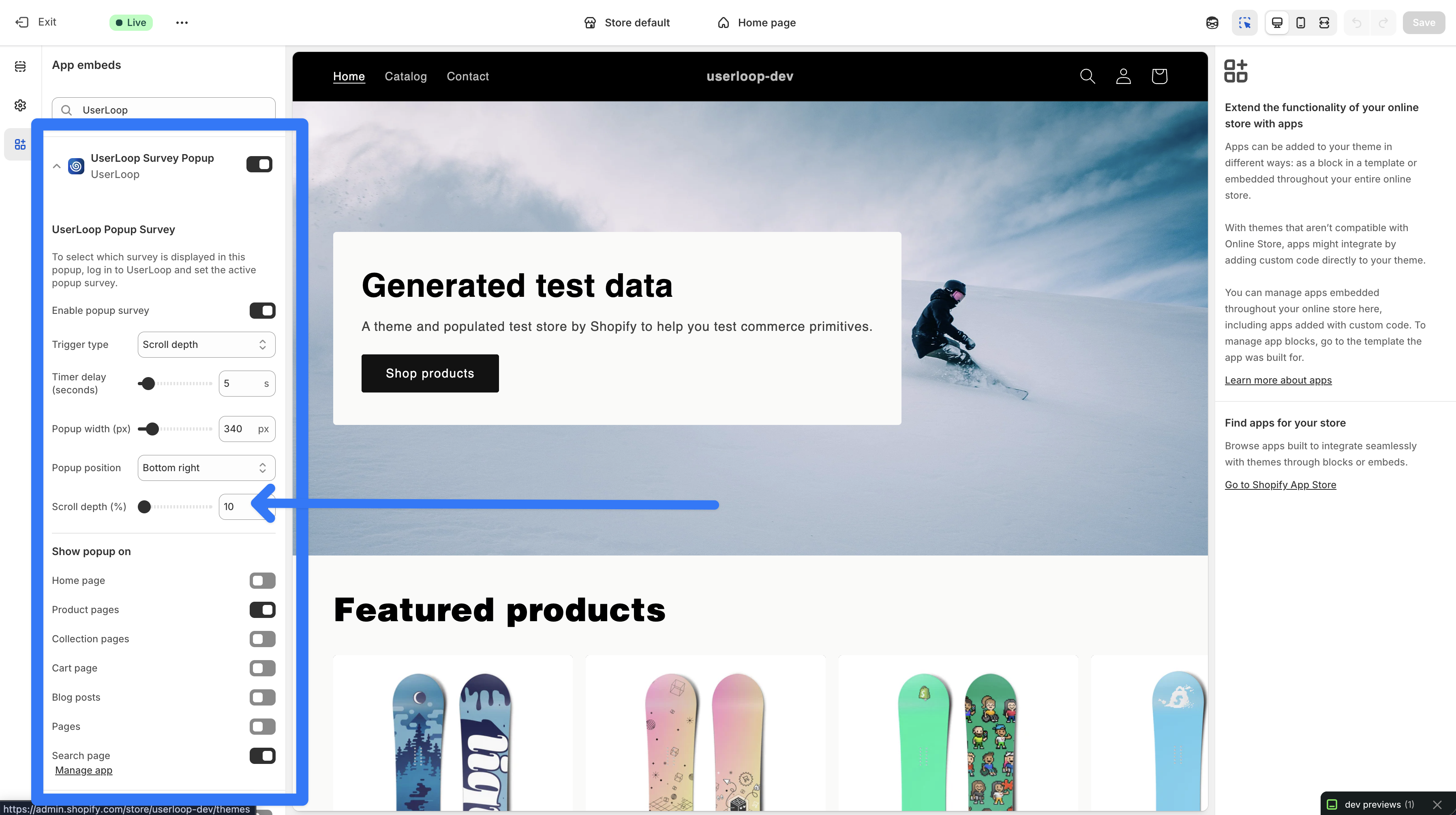
Click Save to publish your changes — your popup survey is now live on your store.
Choosing a Trigger Type
The trigger determines when the popup appears to your visitors. There are three options:
Timer
The popup appears after a set number of seconds. This is the default trigger.
- Delay: Set anywhere from 1 to 60 seconds (default is 5 seconds).
- Best for: Catching visitors who are browsing and have had a moment to engage with your page.
- Tip: We recommend starting with 5-10 seconds. Too short and visitors may feel interrupted; too long and they may have already left.
Exit Intent
The popup appears when the visitor moves their mouse toward the top of the browser window, signaling they're about to leave.
- No additional settings needed — it triggers automatically based on mouse movement.
- Best for: Capturing feedback or emails from visitors who are about to bounce.
- Note: Exit intent only works on desktop browsers. On mobile devices, the popup will fall back to a short timer delay.
Scroll Depth
The popup appears after the visitor scrolls to a certain percentage of the page.
- Depth: Set anywhere from 10% to 100% (default is 50%).
- Best for: Engaging visitors who have shown interest by scrolling through your content — especially useful on blog posts or collection pages.
Choosing Where Popups Appear
You have full control over which pages display the popup. In the settings panel, you can enable or disable popups for each page type independently:
- Home page
- Product pages
- Collection pages
- Cart page
- Blog posts
- Pages (e.g. About Us, Contact, FAQ)
- Search results
All page types are enabled by default. If you only want to survey visitors on product pages, for example, simply uncheck the other page types.
Positioning and Sizing
Position
Choose where the popup appears on screen:
- Center (default) — appears in the middle of the screen with a dark overlay behind it.
- Bottom right — fixed to the bottom-right corner, less intrusive.
- Bottom left — fixed to the bottom-left corner.
- Top right — fixed to the top-right corner.
- Top left — fixed to the top-left corner.
The center position is the most attention-grabbing and tends to get the highest response rates. The corner positions are more subtle and work well if you want to survey visitors without interrupting their browsing.
Width
Set the popup width between 300 and 600 pixels (default is 480px). On mobile devices, the popup automatically transforms into a full-width bottom sheet for a smooth experience regardless of the width you set.
Selecting Which Survey to Display
The popup displays whichever survey you have set as active in your UserLoop dashboard. If this is your first popup survey, it will automatically be set as the live one. If you create multiple popup surveys, you'll need to click Activate Survey on the one you want to use.
Only one popup survey can be active at a time.
Supported Question Types
Popup surveys support all of UserLoop's question types:
- Single select — radio button choices
- Multi select — checkbox choices
- NPS / number scale — 0-10 rating buttons
- Open-ended text — free text input
- Email — email address collection
- Date — date picker
You can also enable the "Other" option on choice questions to let visitors type in their own answer.
Smart Question Targeting
Popup surveys support the same question targeting as other UserLoop survey types:
- All customers — shown to everyone.
- New customers only — shown only to visitors who have never placed an order.
- Returning customers only — shown only to visitors who have ordered before.
Customer status is determined by their email address. If a visitor hasn't provided their email, customer-type-restricted questions are automatically skipped.
Follow-Up Questions
If you've configured follow-up questions on any of your answers, they work seamlessly in popup surveys. When a visitor selects an answer that has a follow-up, the follow-up question appears inline without needing an extra click.
Discount Codes
If you've enabled discount codes on your survey, a unique code will be displayed to the visitor after they complete all the questions. Visitors can click the code to copy it to their clipboard, making it easy for them to use at checkout.
Progress Bar
When enabled in your survey settings, a progress bar appears at the top of the popup showing visitors how far through the survey they are (e.g. "Question 2 of 5"). This helps encourage completion by showing visitors the survey is short.
Auto Proceed
If you have Auto Proceed enabled on your survey, the popup will automatically advance to the next question when a visitor selects a single-choice answer — no need to click a submit button. This creates a faster, smoother experience.
Mobile Experience
On mobile devices, popup surveys automatically adapt:
- The popup transforms into a bottom sheet that slides up from the bottom of the screen.
- It takes up the full width of the screen for easy tapping.
- All buttons and inputs are sized for touch.
Tips for Higher Response Rates
- Keep it short: 2-4 questions is the sweet spot. The fewer questions, the higher your completion rate.
- Start with an easy question: Lead with a simple single-select question before asking for text input or email.
- Offer an incentive: Enable a discount code to reward visitors for completing the survey.
- Target the right pages: If you're asking about products, show the popup only on product pages. If you want general feedback, the home page works well.
- Don't trigger too early: Give visitors at least 5 seconds (or 50% scroll) before showing the popup so they've had time to engage.
FAQs
Can I show different surveys on different pages?
Currently, one survey is active for all popup-enabled pages. If you need different surveys on different pages, consider using App Block Surveys instead, which can be placed individually on specific pages.
Will the popup show again if a visitor dismisses it?
No. Once a visitor completes or dismisses the popup, it won't appear again in that browser. This is tracked via the browser's local storage.
Does it work with my theme's language settings?
Yes. Popup surveys automatically detect your store's language and display in the appropriate locale.
Can I use popups alongside checkout surveys or email surveys?
Absolutely. Popup surveys operate independently from your checkout and email surveys, so you can run all three at the same time.
Need Help?
If you have any questions about setting up popup surveys or need assistance, don't hesitate to reach out to our support team.
Updated on: 26/02/2026
Thank you!