
Question Types
UserLoop offers nine question types to help you collect different kinds of feedback. Each type is designed for a specific purpose, from simple multiple choice to video responses and data collection.
Adding Questions to a Survey
1. Go to Surveys and select your survey (or create a new one).
2. Click the Questions tab, then click Add Question.
3. Choose your question type from the list.
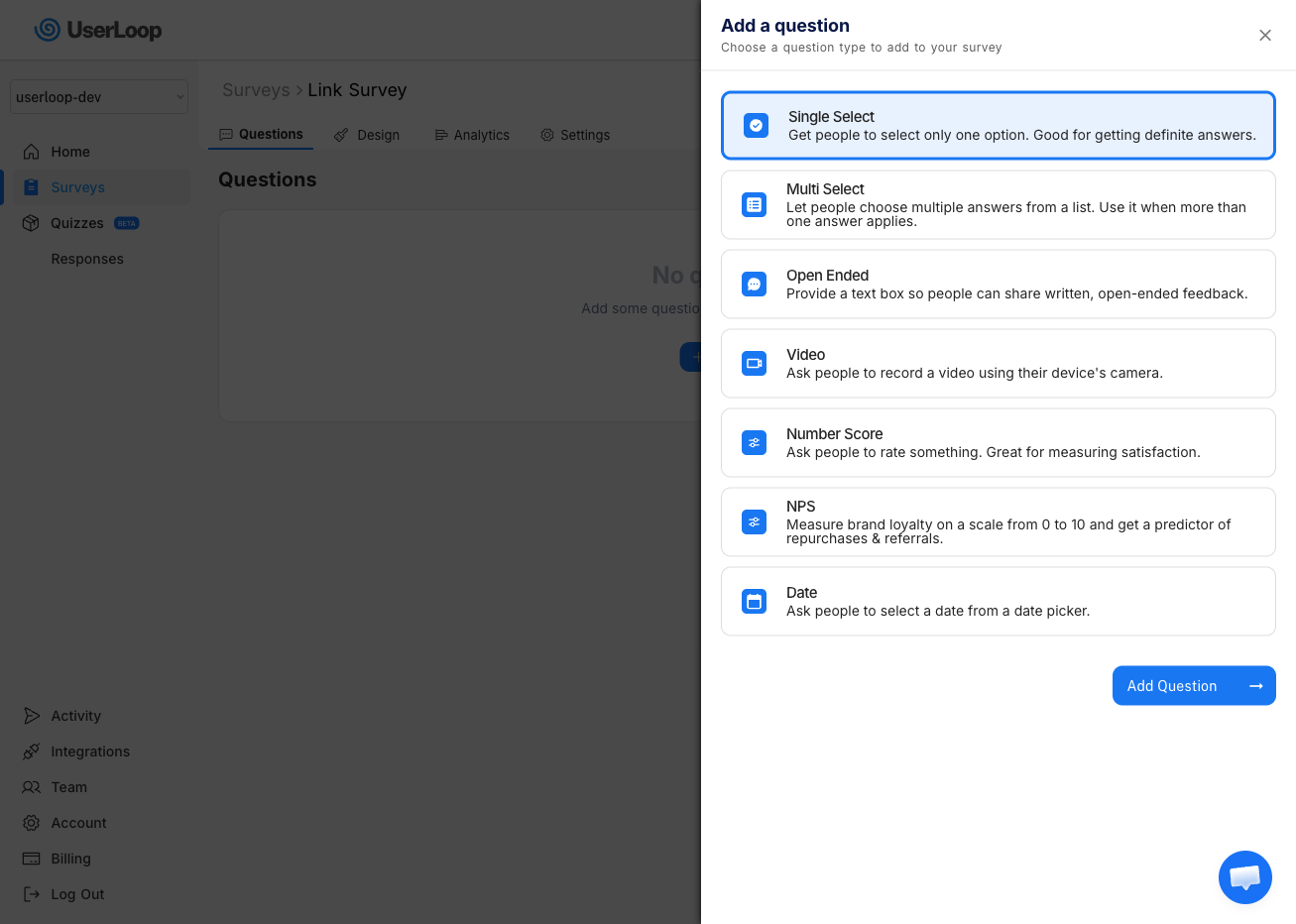
4. Type your question and click Suggest Answers to get AI-generated answer options (for Single Select and Multi Select questions).
5. Drag and drop questions to reorder them.
Single Select
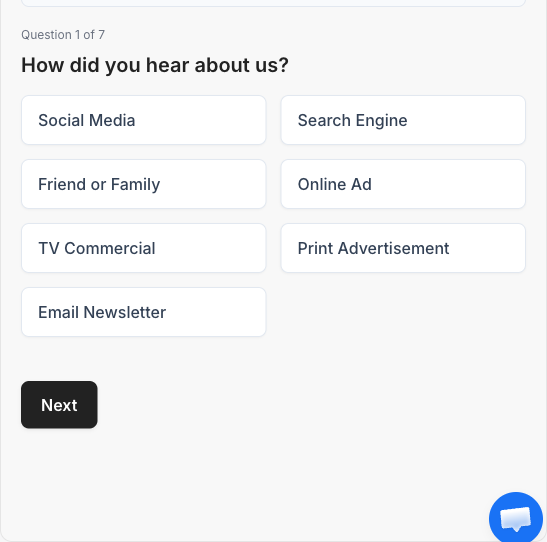
Single Select questions let customers choose exactly one answer from a list of options. This is the most common question type.
When to use it:
- Attribution — "How did you hear about us?"
- Demographics — "What is your age range?"
- Preferences — "Which product category are you most interested in?"
- Satisfaction — "How would you describe your experience?"
Click Suggest Answers to get AI-generated options tailored to your question, or add answers manually. You can drag and drop answers to reorder them.
Single Select questions support the Other toggle (adds a free-text option at the end of the list) and Randomize Order (shuffles answer positions each time the survey is shown). You can also add follow-up questions to individual answers.
Multi Select
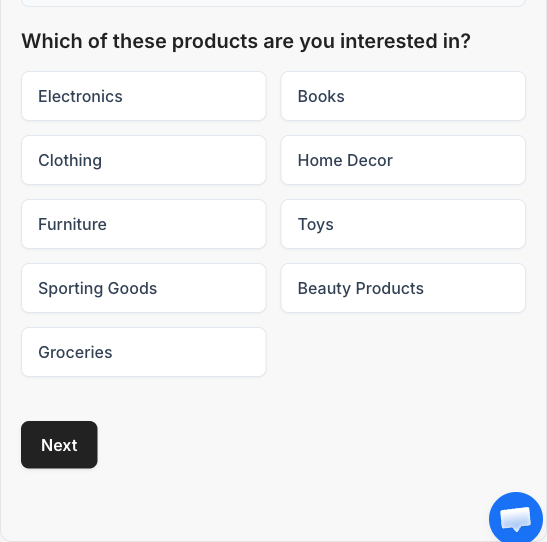
Multi Select questions let customers choose one or more answers from a list of options. Use this when multiple answers could apply.
When to use it:
- Product interests — "Which of these products are you interested in?"
- Feature feedback — "Which features do you use the most?"
- Pain points — "What challenges are you facing?"
- Shopping habits — "Where else do you shop for similar products?"
Click Suggest Answers to get AI-generated options, or add answers manually. Multi Select also supports the Other toggle, Randomize Order, and follow-up questions.
Open Ended
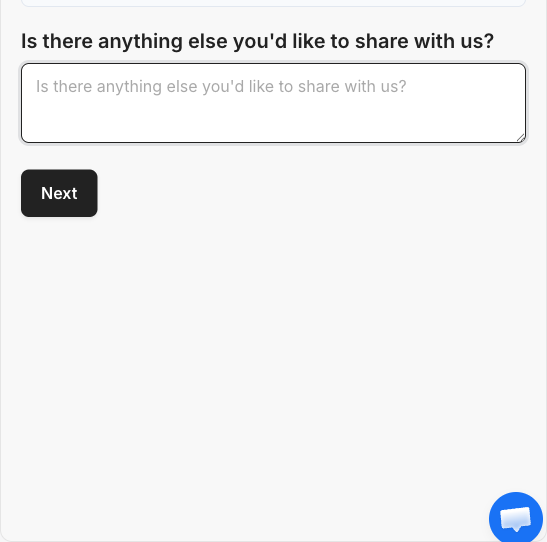
Open Ended questions give customers a free-text field to write their response in their own words. This is the best way to collect detailed, qualitative feedback.
When to use it:
- General feedback — "Is there anything else you'd like to share with us?"
- Product suggestions — "What features would you like to see?"
- Experience details — "What almost stopped you from buying today?"
Keep the question focused so customers know what kind of response you're looking for. Open Ended responses are analyzed in the Analytics section, where UserLoop uses AI to identify common themes across responses.
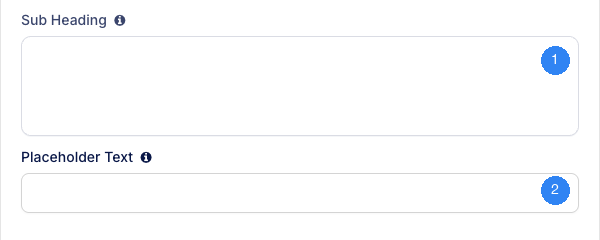
1. Sub Heading — Add extra text below the question heading to provide instructions or context.
2. Placeholder Text — Sets the hint text shown inside the text field before the customer starts typing. Use this to guide customers on what kind of response you're looking for.
Number Score
Number Score questions let customers select a number on a scale. This is useful for any kind of rating or satisfaction question.
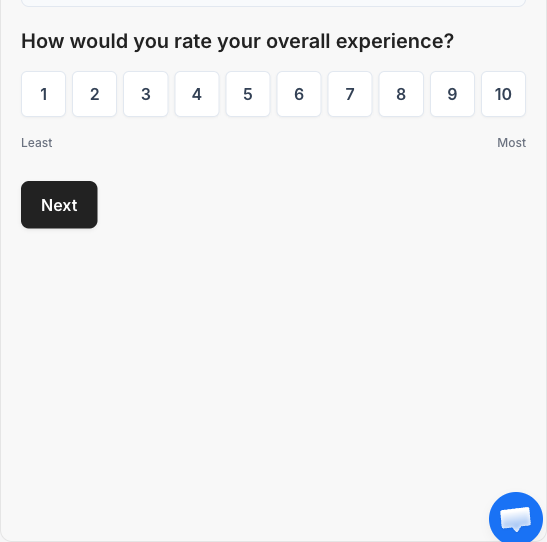
When to use it:
- Overall experience — "How would you rate your overall experience?"
- Product satisfaction — "How would you rate this product?"
- Effort score — "How easy was it to complete your purchase?"
- Any custom rating — Use the label fields to define what the low and high ends mean.
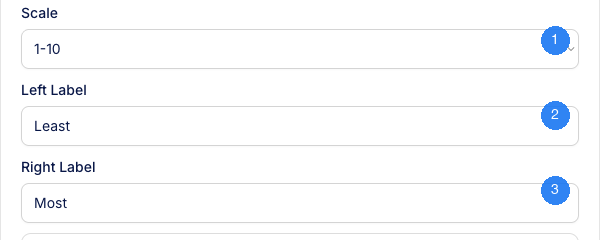
1. Scale — Choose the range and direction of the number scale: 1–10 (default), 10–1 (reversed), 1–5 (shorter scale), or 5–1 (shorter, reversed).
2. Left Label — The label shown at the low end of the scale (e.g. "Least", "Poor", "Very Difficult").
3. Right Label — The label shown at the high end of the scale (e.g. "Most", "Excellent", "Very Easy").
NPS
NPS (Net Promoter Score) is a widely used metric for measuring customer loyalty. It asks customers how likely they are to recommend your brand on a scale of 1 to 10.
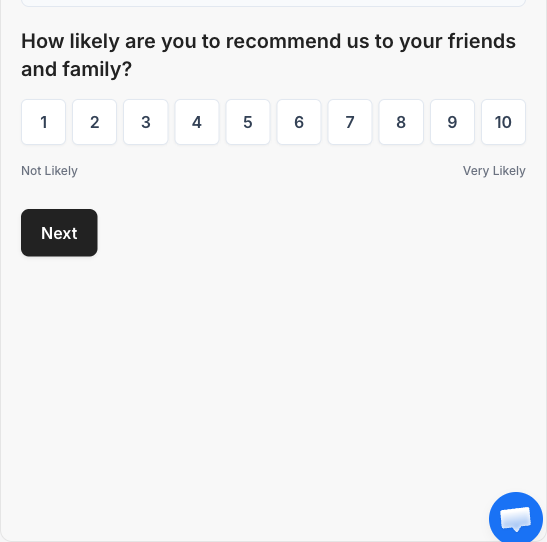
When to use it:
- Post-purchase — "How likely are you to recommend us to a friend or family member?"
- Ongoing tracking — Add an NPS question to your checkout survey to track loyalty over time.
Responses are automatically grouped into three categories:
- Detractors (1–6) — Unhappy customers who are unlikely to recommend you.
- Passives (7–8) — Satisfied but unenthusiastic customers.
- Promoters (9–10) — Loyal customers who will actively recommend you.
Your NPS score is calculated as: % Promoters - % Detractors, ranging from -100 to 100. Go to Analytics to see your score and trend over time.
NPS uses a fixed 1–10 scale with customizable Left Label and Right Label (pre-filled with "Not Likely" and "Very Likely"). Unlike Number Score, the scale cannot be changed.
Date
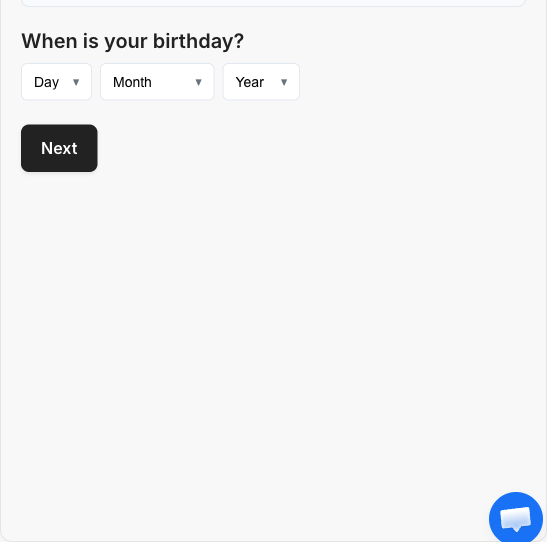
Date questions let customers select a specific date using dropdown selectors for day, month, and year.
When to use it:
- Birthdays — "When is your birthday?" Use this to send personalized birthday offers or discounts.
- Anniversaries — "When did you first start using our products?"
- Event dates — "When is the event you're shopping for?"
Video
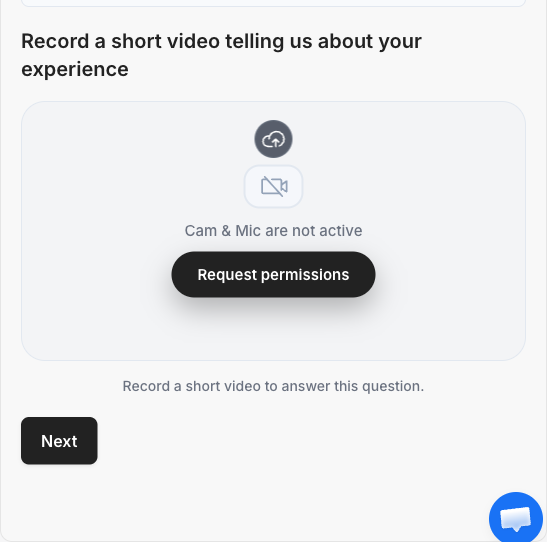
Video questions let customers record a short video response using their device's camera and microphone, or upload an existing video file.
When to use it:
- Testimonials — "Record a short video telling us about your experience."
- Product feedback — "Show us how you use our product."
- Unboxing reactions — "Record your first impressions when opening your order."
Customers can record up to 2 minutes of video, review and re-record before submitting, or upload a file instead. Video questions are available in Link and Popup surveys. They are not currently supported in Checkout surveys.
CSAT
CSAT (Customer Satisfaction) questions measure how satisfied a customer is with a specific experience. Customers choose from a set of satisfaction levels like "Very Satisfied", "Satisfied", "Neutral", etc.
When to use it:
- Post-purchase — "How satisfied are you with your purchase?"
- Support interactions — "How would you rate your experience with our support team?"
- Delivery experience — "How satisfied were you with the delivery?"
CSAT works like a Single Select question with satisfaction-focused answer options. Unlike NPS (which measures loyalty on a 1-10 scale), CSAT measures satisfaction with a specific touchpoint. It supports the Other toggle, Randomize Order, and follow-up questions.
Email questions let you collect a customer's email address as part of your survey. This is especially useful for App Block and Popup surveys where visitors may not be logged in.
When to use it:
- Lead capture — Collect emails from anonymous visitors.
- Identify visitors — Link anonymous survey responses to a customer record.
- Enable targeting — Once an email is collected, subsequent questions can target new or returning customers based on order history.
When an email is collected, all previous responses from that survey session are linked to the email address.
Question Settings
Every question type has the following settings, available in the settings panel on the right side when you click a question.
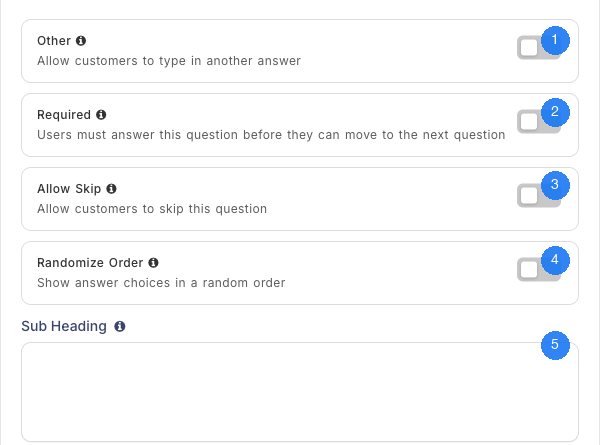
1. Other — Available on Single Select and Multi Select questions only. When enabled, an "Other" option is added to the end of the answer list. If a customer selects it, a text field appears where they can type their own answer.
2. Required — When enabled, customers must answer the question before they can move to the next one. The submit button stays disabled until they select or type an answer.
3. Allow Skip — Shows a Skip button below the submit button, letting customers skip the question without answering. Skipped questions don't record a response. If both Required and Allow Skip are enabled, customers can still skip using the skip button — but they can't proceed without answering unless they explicitly choose to skip.
4. Randomize Order — Shuffles the order of answer choices each time the survey is shown. This helps reduce bias from answer position. If you have an Other option, it always stays at the end of the list regardless of randomization. This setting applies to Single Select and Multi Select questions.
5. Sub Heading — Add extra text below the main question heading. This is useful for providing instructions or additional context without cluttering the main question.
Need Help?
If you have any questions about question types, reach out to us via live chat and we'll be happy to help.
Updated on: 26/02/2026
Thank you!